Your first booking
This is the big one - your very first booking in Barkway. 🎉
Let’s walk through it step by step so you can see how quick (and painless) it really is.
Create a booking
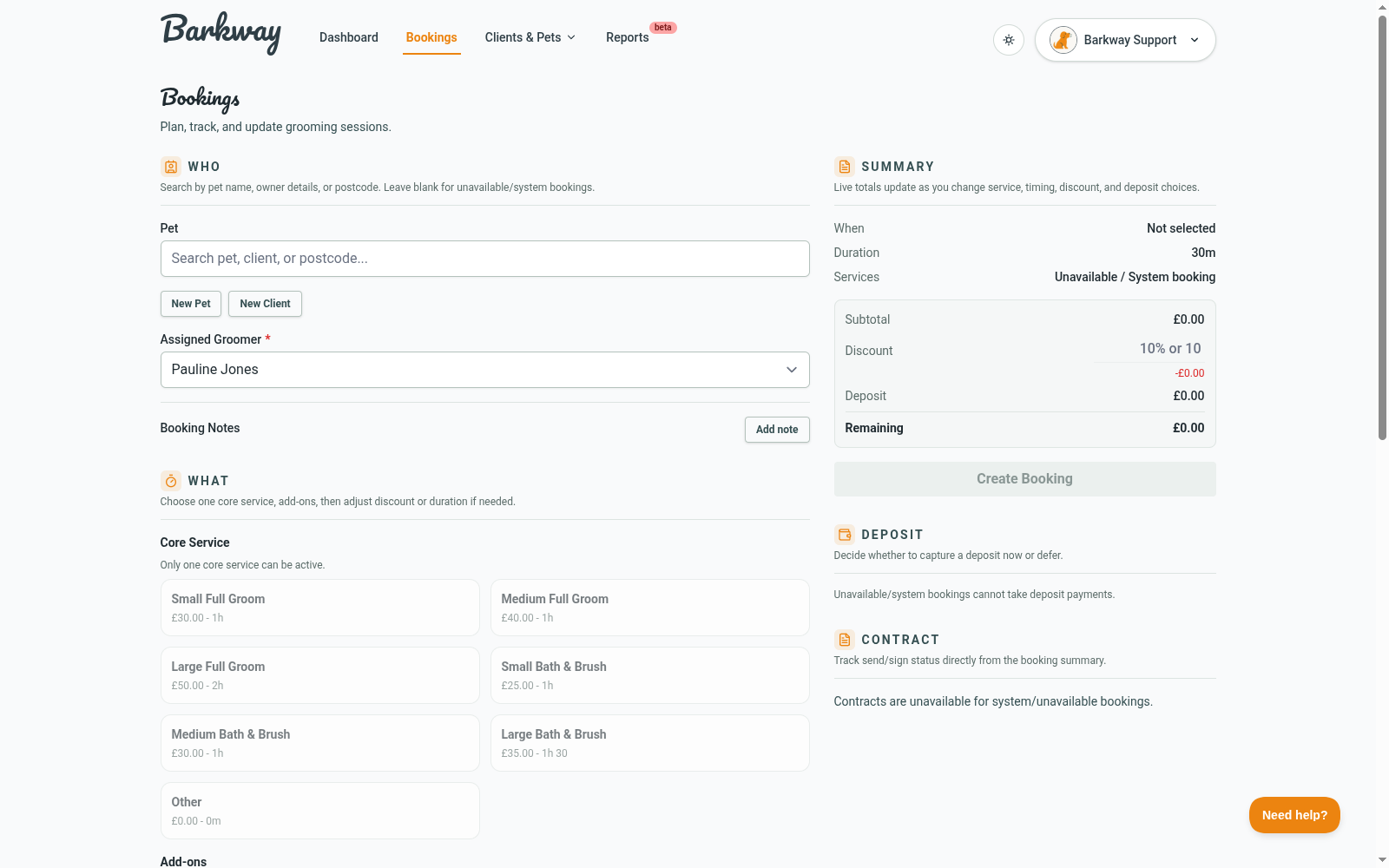
- From Dashboard or Bookings, click New Booking.
- Choose the pet (or leave blank to mark time as Unavailable).
- Add a core service (required) and any add-ons.
- Pick the date and time slot. Barkway checks for clashes.
note
If you don’t see any services yet, head to Set up your services and add one, then come back here.
tip
If the client or pet does not exist yet, the booking flow includes New Client and New Pet shortcuts in the Who step.
Deposits and discounts
- If deposits are enabled, Barkway shows the required deposit based on your settings.
- You can record the deposit now or later.
- Add a discount as a fixed amount or percentage.
tip
Barkway handles the maths for fixed or percentage discounts automatically.
Notes
- Add any special instructions (like “nervous dog, allow extra time”).
- Notes stay with the booking and are easy to update later.
Status
- New bookings start as Scheduled.
- You can update them to In progress, Completed, or Cancelled from the View Booking screen.
Why it matters
- Keeps your calendar organised.
- Totals and timings are handled automatically.
- Deposits and discounts are applied cleanly once you record payment.
Next step
With your first booking saved, you’re officially up and running in Barkway. 🎉
Next, decide if you want to:
- Polish your setup (services, branding, hours) in Onboarding & Setup.
- Explore daily workflows in Features.
Keep going
Jump to the next guide or browse related features when you’re ready.