Recording a payment
Getting paid should be quick and painless. In Barkway, you can record any kind of payment (cash, bank transfer, card, or deposit) directly from the View Booking page.
Step-by-step
-
Open the booking
From Bookings or the calendar, click the appointment to open View Booking. -
Click Record Payment
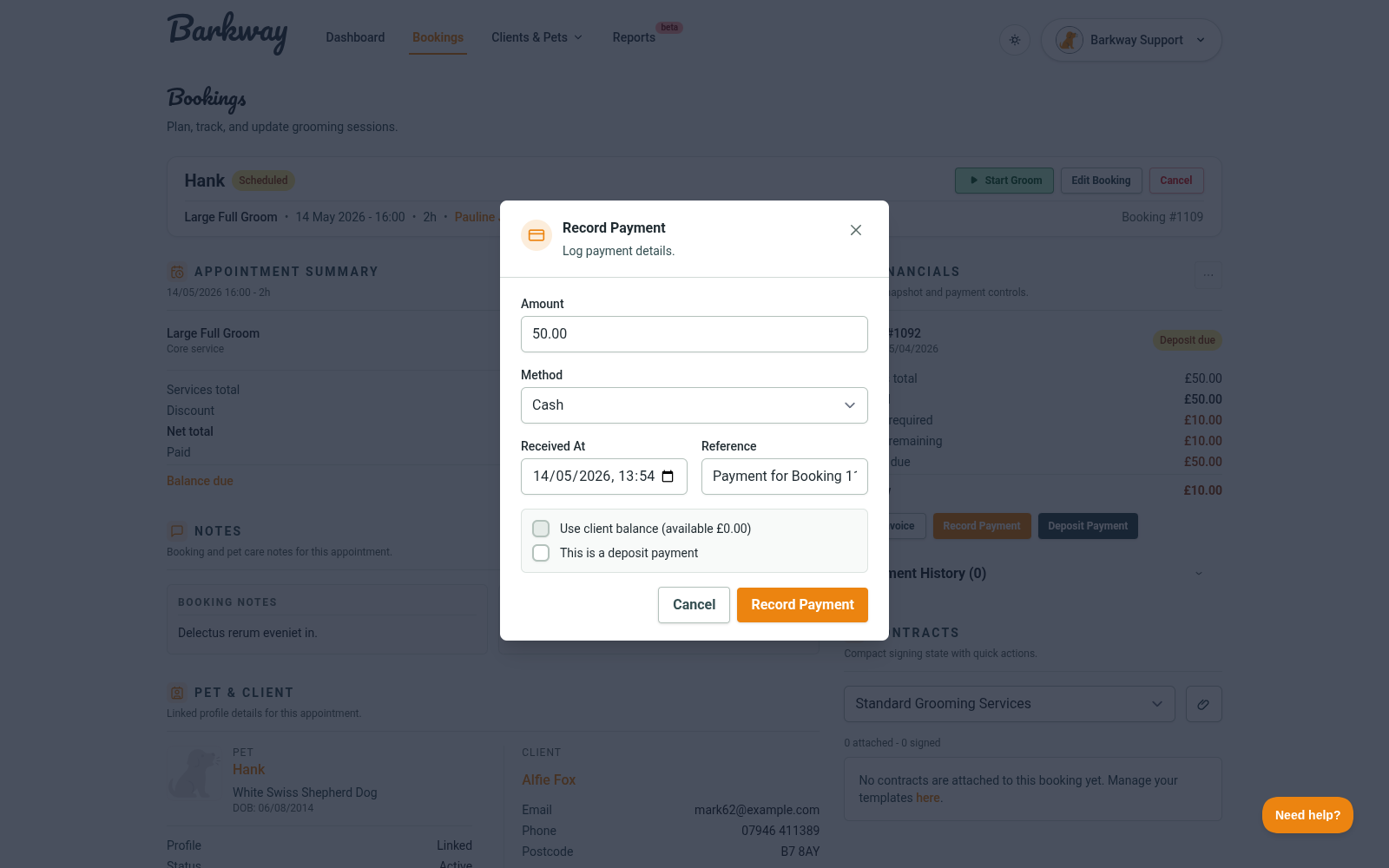
In the Financials panel, hit Record Payment to open the payment window. -
Enter the details
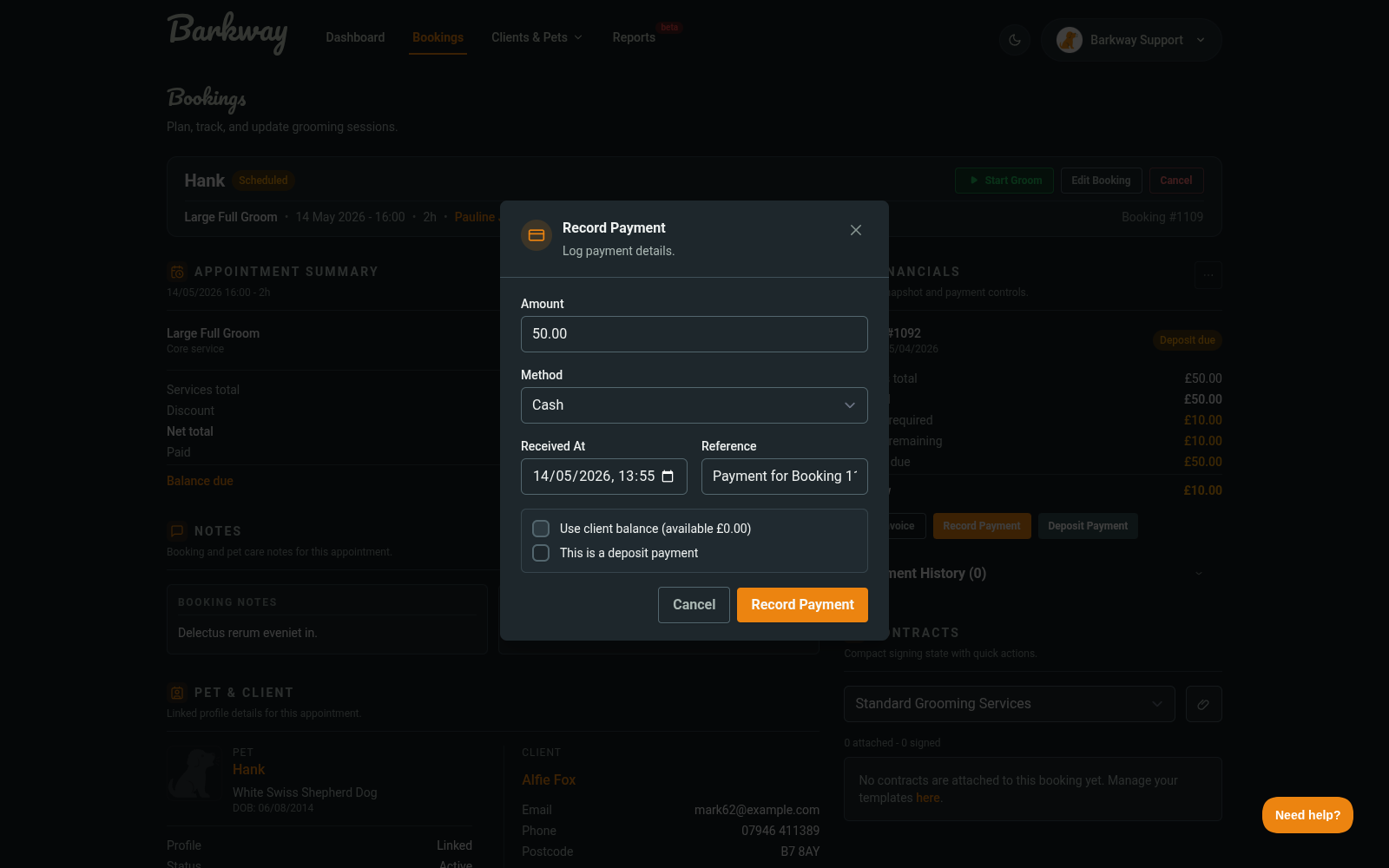
- Amount - full or partial payment
- Method - Cash, Bank Transfer, Card, or Other (Client Balance is set automatically if you use balance)
- Received at - date and time (defaults to now)
- Reference (optional)
-
Optional: mark it as a deposit
Tick This is a deposit payment if you’re taking a deposit. -
Save
Barkway logs the payment and updates the invoice status automatically.
Using client balance
If the client has balance available:
- Tick Use client balance.
- Barkway automatically sets the method to Client Balance.
- Barkway caps the amount so you can’t apply more than the balance or the amount due.
What happens next?
- The payment appears in Payment History.
- The Remaining Balance updates immediately.
- Invoice status updates automatically (Unpaid → Partial → Paid).
Pro tips
- Use the Reference field for notes like “Paid via bank transfer.”
- You can backdate a payment by changing Received at.
- Overpayments are automatically moved into the client balance.
🐾 With Barkway’s simple payment flow, keeping your books straight is just a few clicks - no spreadsheets, no stress.
Need a hand?
Email the Barkway team and we’ll point you to the right place.