Creating a pet
Pets are the stars of the show. Barkway keeps their profiles tidy with names, breeds, quirks, health info, and that all-important first photo.
Step-by-step
-
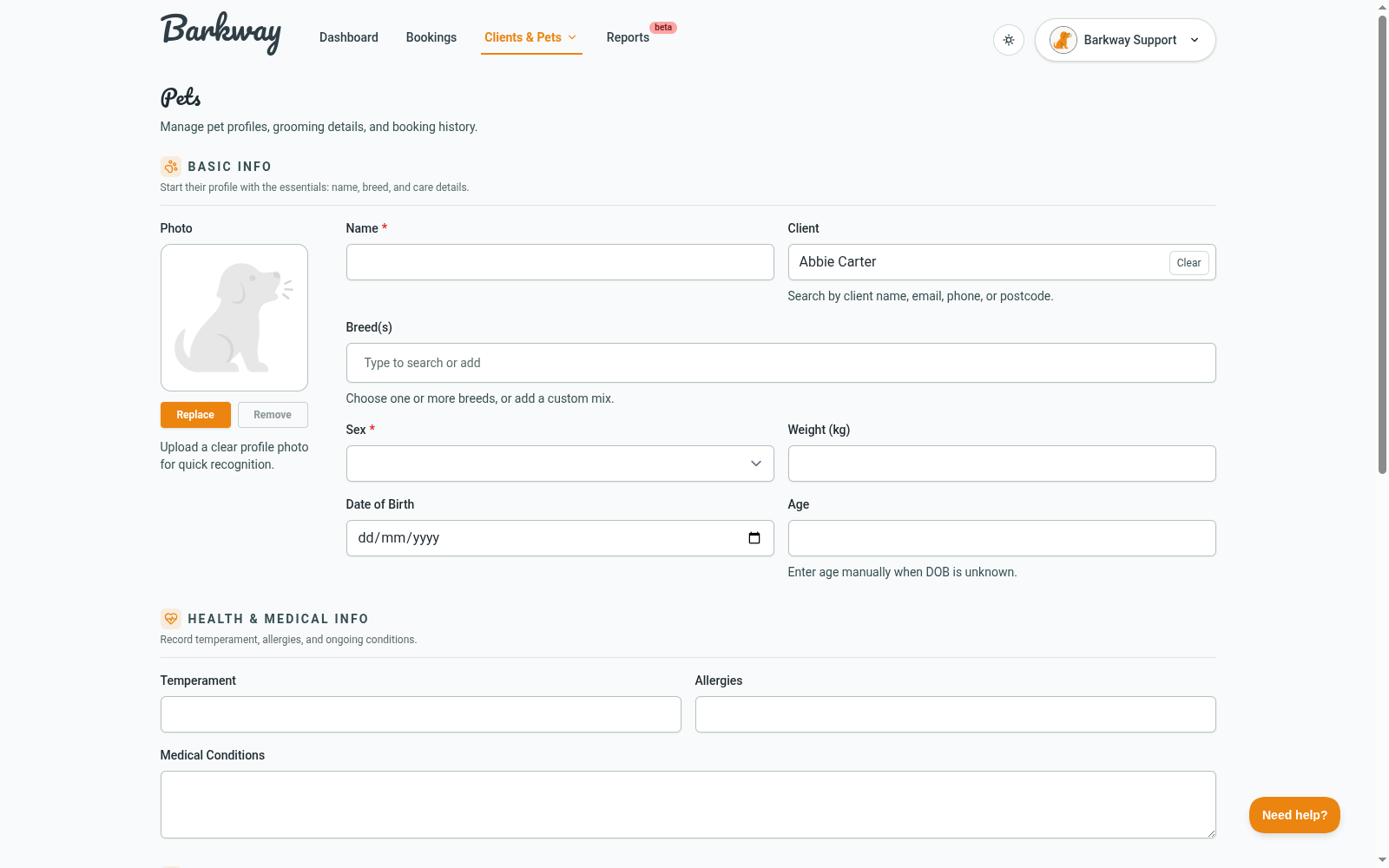
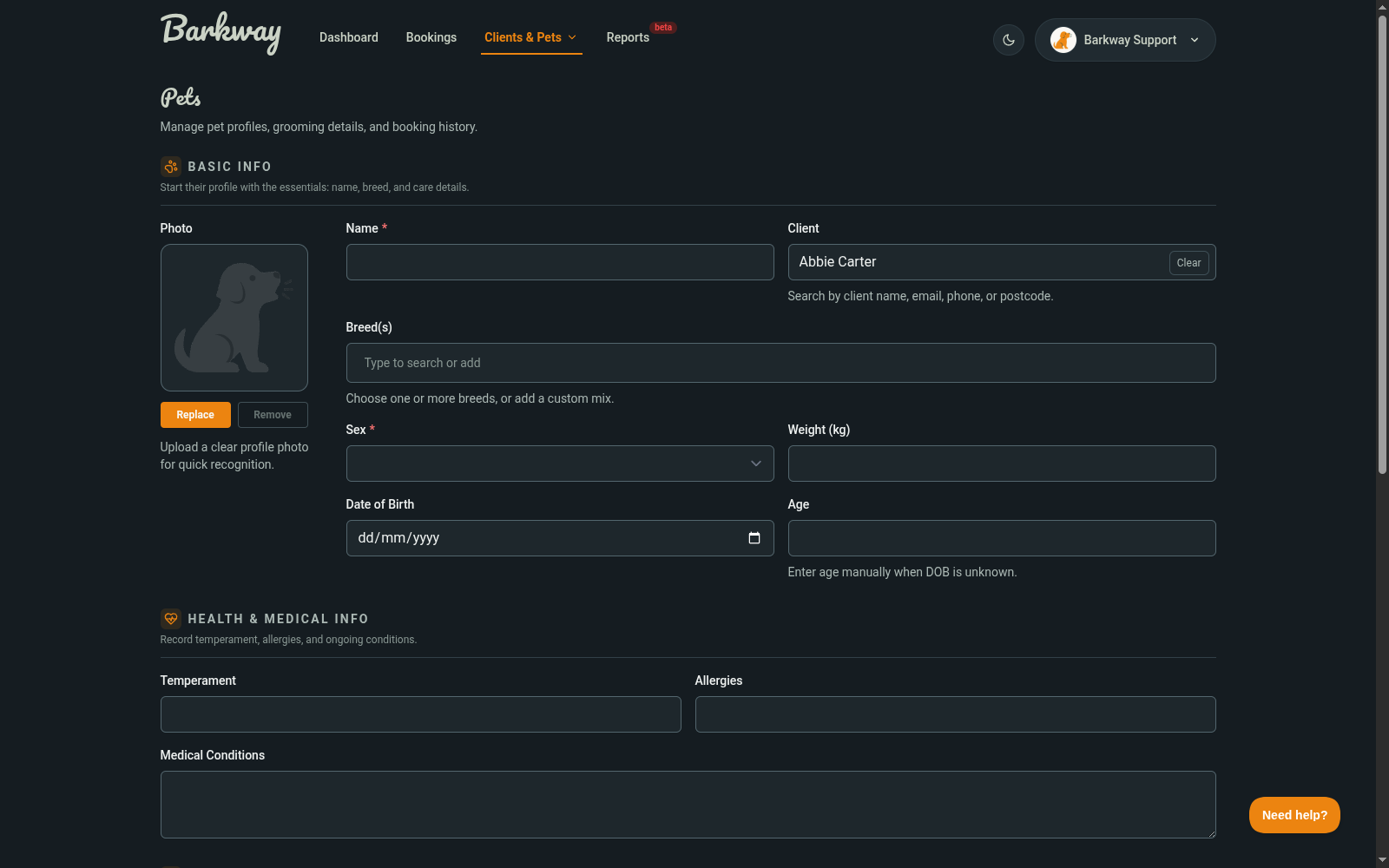
Click New Pet
Open Clients & Pets, choose Pets, then hit New Pet. (You can also start a pet while working from a client record.) -
Upload a photo (optional)
Add a profile picture now or later. -
Enter the basics
- Name (required)
- Client (optional - link to an owner if you want bookings and reminders tied correctly)
- Breed(s) (search, select, or type a new one and press Enter)
- Sex, Weight, Date of Birth, Age (optional)
-
Health & medical info (optional)
- Temperament
- Allergies
- Medical conditions
-
Grooming & vet info (optional)
- Last groomed date
- Microchip number
- Vet info (can be required if you switch on “Vet info required” in Settings)
-
Notes (optional)
Keep quirky details here. Examples: “Hates the dryer”, “Needs a break for nails”. -
Save the pet
- Save Pet returns to the Pets list.
- Save & Create Booking jumps straight into a new booking.
Extra features
- Breed Picker - choose multiple breeds or add new ones on the fly.
- Client Search - find an owner quickly by name, email, phone, or postcode.
- Photo Upload - each pet can have a profile photo, with easy replacement.
- Custom breeds - the breed list is fully customizable; contact support if you need special setup.
Pro tips
- Link pets to the right client whenever possible - it keeps bookings and reminders flowing smoothly.
- Use Pet Notes for quirks and behaviours; keep payment or scheduling info in Client Notes instead.
- Add the Last Groomed date if you know it - this helps Barkway power recall reminders later.
🐾 With pets set up properly, Barkway becomes their digital profile - all their quirks, health info, and groom history tied together in one tidy record.
Need a hand?
Email the Barkway team and we’ll point you to the right place.