Basic setup
If you want your invoices, emails, and hours to be accurate, set these basics now. You can do this before or after your first booking. 🐾
Business details
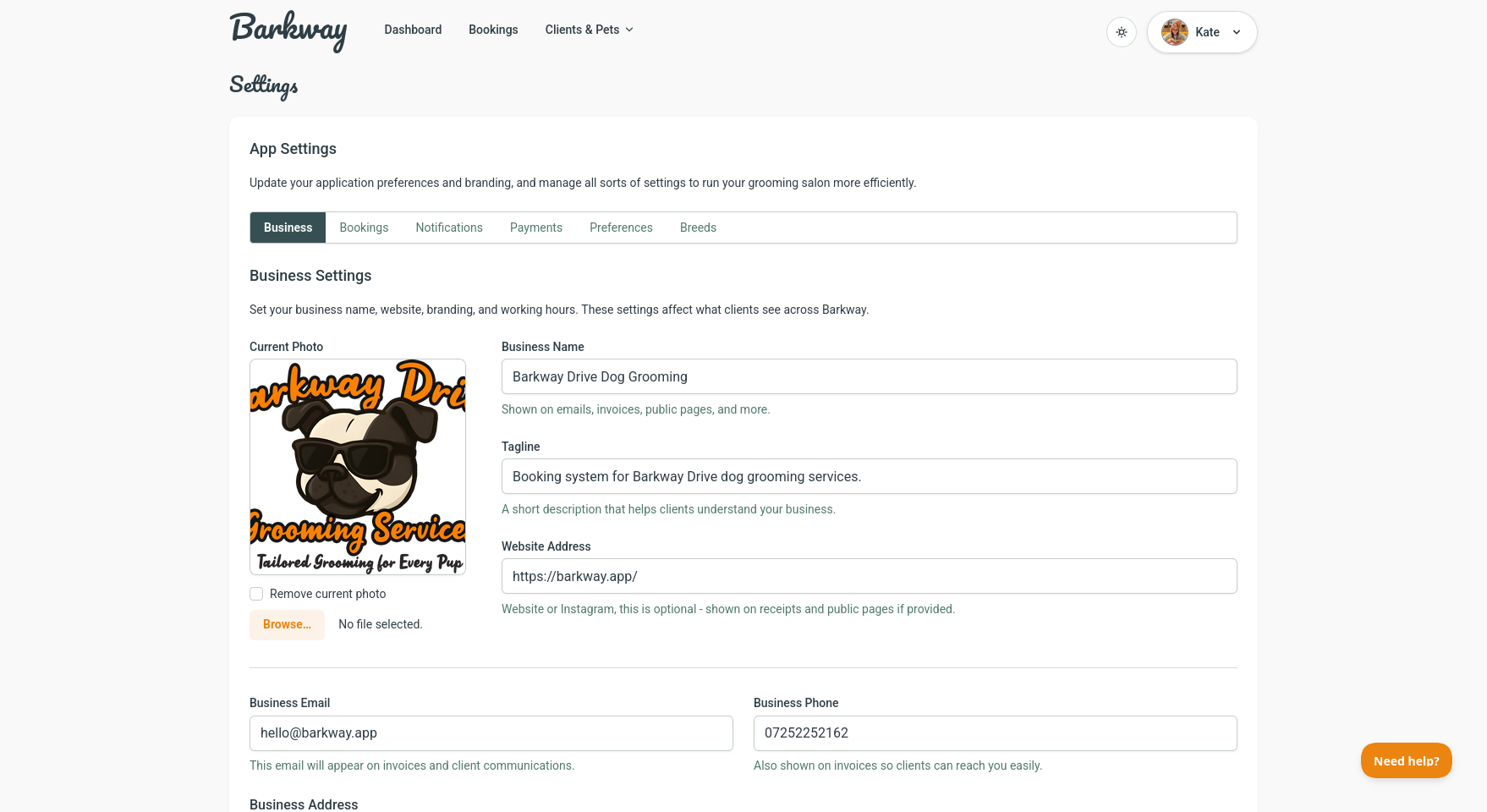
- Go to Manage → Settings.
- Enter your business name, phone, and contact email.
- Add your address if you want it to appear on invoices.
tip
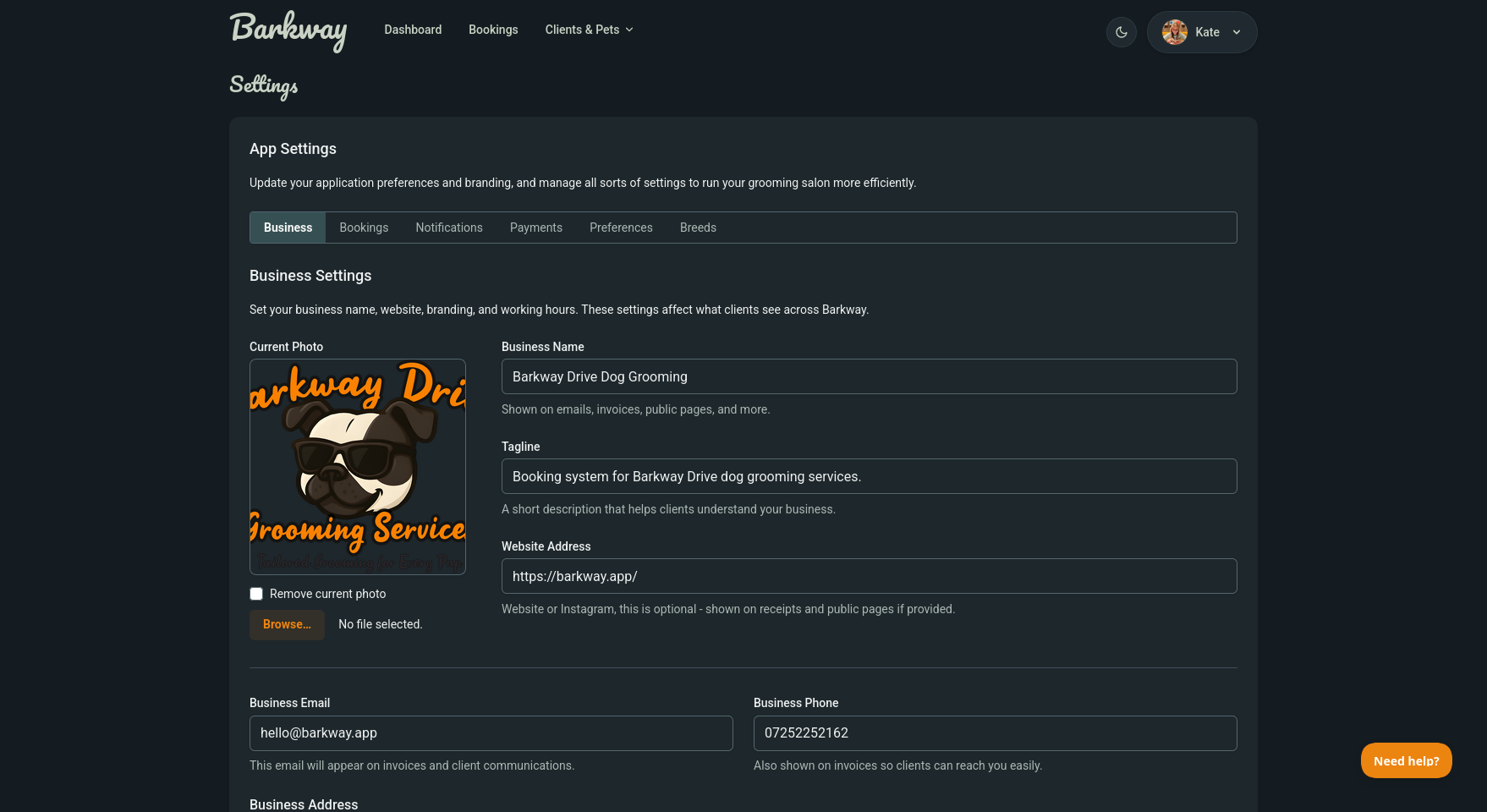
This info shows up on emails and invoices, so make sure it looks just how you want clients to see it.
Logo and branding
- Upload your logo to appear on invoices and PDFs.
Your clients will see a polished, professional look from day one. ✨
Opening hours
- Set your open and close times for each day.
This keeps your calendar realistic and avoids any surprise out-of-hours bookings.
Next steps
If you haven’t already, head to Set up your services so bookings and invoices have the right pricing and durations.
Keep going
Jump to the next guide or browse related features when you’re ready.